Kubernetes Validator Deployment
Requirements
- DevNet (0.9.3)
- TestNet (0.9.3)
- MainNet (0.9.3)
- A running Kubernetes cluster in which you have administrator access to create and manage namespaces.
-
A development workstation with the following:
kubectl- At least v1.26.1helm- At least v3.11.1 (recommended >= v3.17.0)
- Your cluster needs a static egress IP. After acquiring that, provide it to your SV sponsor who will propose adding it to the IP allowlist to the other SVs.
- Please download the release artifacts containing the sample Helm value files, from here: Download Bundle (DevNet 0.9.3), and extract the bundle:
tar xzvf 0.9.3_splice-node.tar.gz
MIGRATION_ID, SPONSOR_SV_URL, and ONBOARDING_SECRET mean and where to find them.That page also covers how to obtain a DevNet onboarding secret automatically.In addition, for a Kubernetes deployment you need:- TRUSTED_SCAN_URL — The scan URL of an SV that you trust and that is reachable by your validator, often your SV sponsor. This should be of the form https://scan.sv-1.dev.global.canton.network.YOUR_SV_SPONSOR, e.g., for the Global Synchronizer Foundation SV it is https://scan.sv-1.dev.global.canton.network.sync.global.
- A running Kubernetes cluster in which you have administrator access to create and manage namespaces.
-
A development workstation with the following:
kubectl- At least v1.26.1helm- At least v3.11.1 (recommended >= v3.17.0)
- Your cluster needs a static egress IP. After acquiring that, provide it to your SV sponsor who will propose adding it to the IP allowlist to the other SVs.
- Please download the release artifacts containing the sample Helm value files, from here: Download Bundle (TestNet 0.9.3), and extract the bundle:
tar xzvf 0.9.3_splice-node.tar.gz
MIGRATION_ID, SPONSOR_SV_URL, and ONBOARDING_SECRET mean and where to find them.In addition, for a Kubernetes deployment you need:- TRUSTED_SCAN_URL — The scan URL of an SV that you trust and that is reachable by your validator, often your SV sponsor. This should be of the form https://scan.sv-1.test.global.canton.network.YOUR_SV_SPONSOR, e.g., for the Global Synchronizer Foundation SV it is https://scan.sv-1.test.global.canton.network.sync.global.
- A running Kubernetes cluster in which you have administrator access to create and manage namespaces.
-
A development workstation with the following:
kubectl- At least v1.26.1helm- At least v3.11.1 (recommended >= v3.17.0)
- Your cluster needs a static egress IP. After acquiring that, provide it to your SV sponsor who will propose adding it to the IP allowlist to the other SVs.
- Please download the release artifacts containing the sample Helm value files, from here: Download Bundle (MainNet 0.9.3), and extract the bundle:
tar xzvf 0.9.3_splice-node.tar.gz
MIGRATION_ID, SPONSOR_SV_URL, and ONBOARDING_SECRET mean and where to find them.In addition, for a Kubernetes deployment you need:- TRUSTED_SCAN_URL — The scan URL of an SV that you trust and that is reachable by your validator, often your SV sponsor. This should be of the form https://scan.sv-1.global.canton.network.YOUR_SV_SPONSOR, e.g., for the Global Synchronizer Foundation SV it is https://scan.sv-1.global.canton.network.sync.global.
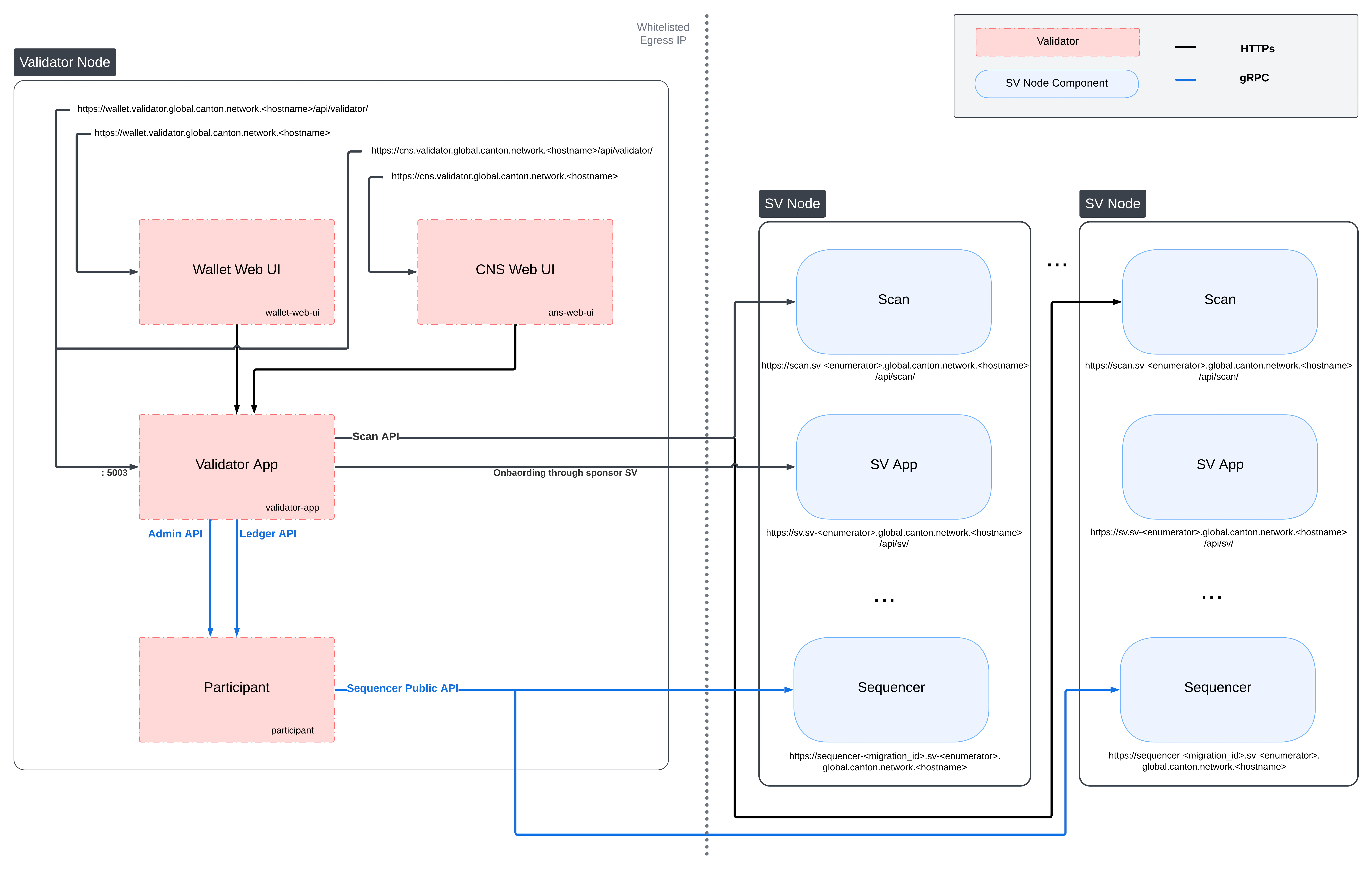
Validator Network Diagram
Preparing a Cluster for Installation
Create the application namespace within Kubernetes.kubectl create ns validator
HTTP Proxy configuration
If you need to use an HTTP forward proxy for egress in your environment, you need to sethttps.proxyHost and https.proxyPort in additionalJvmOptions in the validator and participant helm charts to use the HTTP proxy for outgoing connections:
additionalJvmOptions: |
-Dhttps.proxyHost=your.proxy.host
-Dhttps.proxyPort=your_proxy_port
your.proxy.host and your_proxy_port with the actual host and port of your HTTP proxy. Proxy authentication is currently not supported.
Bypassing the proxy for specific hosts
http.nonProxyHosts affects:- The HTTP client used by the CN apps (Validator, Scan, SV, Wallet).
- JDK-level HTTP clients in the same JVM (via the default
ProxySelector). This includes the Auth0 JWK library used by the CN apps and by the Canton participant for JWKS / OIDC discovery, as well as file downloads that usejava.net.HttpURLConnection. - gRPC egress from other components, because gRPC’s Netty transport delegates proxy decisions to the default JDK
ProxySelector.
http.nonProxyHosts to bypass the proxy for specific target hosts. Matching hosts will be contacted directly rather than through the configured proxy. This is useful for services that are reachable on the local network, such as an in-cluster Scan instance or internal monitoring endpoints.
The value is a |-separated list of patterns that follows the standard Java nonProxyHosts grammar:
- Patterns match the request host name case-insensitively.
*is a wildcard. Conventionally it is used at the start (*.internal) or end (10.*) of a pattern.- Matching is performed on the raw host string from the request URI. No DNS resolution is performed, so
localhostand127.0.0.1are treated as different names unless you list both. - An empty value (e.g.
-Dhttp.nonProxyHosts=) means “no bypass patterns”.
additionalJvmOptions for the validator helm chart that proxies external traffic but bypasses the proxy for localhost / 127.0.0.1, any host in the .internal domain, and any IPv4 address whose literal string representation starts with 10.:
additionalJvmOptions: |
-Dhttps.proxyHost=your.proxy.host
-Dhttps.proxyPort=your_proxy_port
-Dhttp.nonProxyHosts=localhost|127.0.0.1|*.internal|10.*
Configuring PostgreSQL authentication
The PostgreSQL instance that the helm charts create, and all apps that depend on it, require the user’s password to be set through Kubernetes secrets. Currently, all apps use the Postgres usercnadmin. The password can be setup with the following command, assuming you set the environment variable POSTGRES_PASSWORD to a secure value:
kubectl create secret generic postgres-secrets \
--from-literal=postgresPassword=${POSTGRES_PASSWORD} \
-n validator
Preparing for Validator Onboarding
Ensure that your validator onboarding secretONBOARDING_SECRET is set in the namespace you created earlier.
kubectl create secret generic splice-app-validator-onboarding-validator \
"--from-literal=secret=${ONBOARDING_SECRET}" \
-n validator
Configuring Authentication
For security, the various components that comprise your Validator node need to be able to authenticate themselves to each other, as well as be able to authenticate external UI and API users. We use JWT access tokens for authentication and expect these tokens to be issued by an (external) OpenID Connect (OIDC) provider. You must:- Set up an OIDC provider in such a way that both backends and web UI users are able to obtain JWTs in a supported form.
- Configure your backends to use that OIDC provider.
helm-validator-no-auth.
OIDC Provider Requirements
This section provides pointers for setting up an OIDC provider for use with your Validator node. Feel free to skip directly tohelm-validator-auth0 if you plan to use Auth0 for your Validator node’s authentication needs.
These docs focus on Auth0, and are being continuously tested and maintained. Other OIDC providers can be used, and are in active use by various community members, who have contributed some notes and examples in Okta and Keycloak community authored examples.
Your OIDC provider must be reachable1 at a well known (HTTPS) URL. In the following, we will refer to this URL as OIDC_AUTHORITY_URL. Both your Validator node and any users that wish to authenticate to a web UI connected to your Validator node must be able to reach the OIDC_AUTHORITY_URL. We require your OIDC provider to provide a discovery document at OIDC_AUTHORITY_URL/.well-known/openid-configuration. We furthermore require that your OIDC provider exposes a JWK Set document. In this documentation, we assume that this document is available at OIDC_AUTHORITY_URL/.well-known/jwks.json.
For machine-to-machine (Validator node component to Validator node component) authentication, your OIDC provider must support the OAuth 2.0 Client Credentials Grant flow. This means that you must be able to configure (CLIENT_ID, CLIENT_SECRET) pairs for all Validator node components that need to authenticate themselves to other components. Currently, this is the validator app backend - which needs to authenticate to the Validator node’s Canton participant. The sub field of JWTs issued through this flow must match the user ID configured as ledger-api-user in helm-validator-auth-secrets-config. In this documentation, we assume that the sub field of these JWTs is formed as CLIENT_ID@clients. If this is not true for your OIDC provider, pay extra attention when configuring ledger-api-user values below.
For user-facing authentication - allowing users to access the various web UIs hosted on your Validator node, your OIDC provider must support the OAuth 2.0 Authorization Code Grant flow and allow you to obtain client identifiers for the web UIs your Validator node will be hosting. Currently, these are the Wallet web UI and the CNS web UI. You might be required to whitelist a range of URLs on your OIDC provider, such as “Allowed Callback URLs”, “Allowed Logout URLs”, “Allowed Web Origins”, and “Allowed Origins (CORS)”. If you are using the ingress configuration of this runbook, the correct URLs to configure here are https://wallet.validator.YOUR_HOSTNAME (for the Wallet web UI) and https://cns.validator.YOUR_HOSTNAME (for the CNS web UI).
YOUR_HOSTNAME is a placeholder that you need to replace with the actual domain name or IP address of the server hosting your services.
An identifier that is unique to the user must be set via the sub field of the issued JWT. On some occasions, this identifier will be used as a user name for that user on your Validator node’s Canton participant. In helm-validator-install, you will be required to configure a user identifier as the validatorWalletUser -make sure that whatever you configure there matches the contents of the sub field of JWTs issued for that user.
All JWTs issued for use with your Validator node:
- must be signed using the RS256 signing algorithm
scope explicitly set to daml_ledger_api (when requested to do so as part of the OAuth 2.0 authorization code flow).
Summing up, your OIDC provider setup must provide you with the following configuration values:
| Name | Value |
|---|---|
| OIDC_AUTHORITY_URL | The URL of your OIDC provider for obtaining the openid-configuration and jwks.json. |
| VALIDATOR_CLIENT_ID | The client id of your OIDC provider for the validator app backend. |
| VALIDATOR_CLIENT_SECRET | The client secret of your OIDC provider for the validator app backend. |
| WALLET_UI_CLIENT_ID | The client id of your OIDC provider for the wallet UI. |
| CNS_UI_CLIENT_ID | The client id of your OIDC provider for the CNS UI. |
Name column, in helm-validator-auth-secrets-config and helm-validator-install.
When first starting out, it is suggested to configure both JWT token audiences below to the same value: https://canton.network.global.
Once you can confirm that your setup is working correctly using this (simple) default, we recommend that you configure dedicated audience values that match your deployment and URLs. This is important for security to avoid tokens for your validators on one network be usable for your validators on another network. You can configure audiences of your choice for the participant ledger API and the validator backend API. We will refer to these using the following configuration values:
| Name | Value |
|---|---|
| OIDC_AUTHORITY_LEDGER_API_AUDIENCE | The audience for the participant ledger API. e.g. https://ledger_api.example.com |
| OIDC_AUTHORITY_VALIDATOR_AUDIENCE | The audience for the validator backend API. e.g. https://validator.example.com/api |
| Name | Value |
|---|---|
| OIDC_AUTHORITY_LEDGER_API_SCOPE | The scope for the participant ledger API. Optional |
helm-validator-auth0 as well, to check for functionality or configuration details that your OIDC provider setup might be missing.
Configuring an Auth0 Tenant
To configure Auth0 as your validator’s OIDC provider, perform the following:- Create an Auth0 tenant for your validator
-
Create an Auth0 API that controls access to the ledger API:
- Navigate to Applications > APIs and click “Create API”. Set name to
Daml Ledger API, set identifier tohttps://canton.network.global. Alternatively, if you would like to configure your own audience, you can set the identifier here. e.g.https://ledger_api.example.com. - Under the Permissions tab in the new API, add a permission with scope
daml_ledger_api, and a description of your choice. - On the Settings tab, scroll down to “Access Settings” and enable “Allow Offline Access”, for automatic token refreshing.
- Navigate to Applications > APIs and click “Create API”. Set name to
-
(Optional) If you want to configure a different audience to your APIs, you can do so by creating new Auth0 APIs with an identifier set to the audience of your choice. For example,
- Create another API by setting name to
Validator App API, set identifier for the Validator backend app e.g.https://validator.example.com/api.
- Create another API by setting name to
-
Create an Auth0 Application for the validator backend:
- In Auth0, navigate to Applications -> Applications, and click the “Create Application” button.
- Name it
Validator app backend, choose “Machine to Machine Applications”, and click Create. - Choose the
Daml Ledger APIAPI you created in step 2 in the “Authorize Machine to Machine Application” dialog and click Authorize.
-
Create an Auth0 Application for the wallet web UI.
- In Auth0, navigate to Applications -> Applications, and click the “Create Application” button.
- Choose “Single Page Web Applications”, call it
Wallet web UI, and click Create. - Determine the URL for your validator’s wallet UI. If you’re using the ingress configuration of this runbook, that would be
https://wallet.validator.YOUR_HOSTNAME. - In the Auth0 application settings, add the URL of the validator wallet to the following:
- “Allowed Callback URLs”
- “Allowed Logout URLs”
- “Allowed Web Origins”
- “Allowed Origins (CORS)”
- Save your application settings.
-
Create an Auth0 Application for the CNS web UI. Repeat all steps described in step 5, with following modifications:
- In step b, use
CNS web UIas the name of your application. - In steps c and d, use the URL for your validator’s CNS UI. If you’re using the ingress configuration of this runbook, that would be
https://cns.validator.YOUR_HOSTNAME.
- In step b, use
helm-validator-install - for being able to log in as your Validator node’s administrator. You will be asked to obtain the user identifier for this user account. It can be found in the Auth0 interface under User Management -> Users -> your user’s name -> user_id (a field right under the user’s name at the top).
We will use the environment variables listed in the table below to refer to aspects of your Auth0 configuration:
| Name | Value |
|---|---|
| OIDC_AUTHORITY_URL | https://AUTH0_TENANT_NAME.us.auth0.com |
| OIDC_AUTHORITY_LEDGER_API_AUDIENCE | The optional audience of your choice for Ledger API. e.g. https://ledger_api.example.com |
| VALIDATOR_CLIENT_ID | The client id of the Auth0 app for the validator app backend |
| VALIDATOR_CLIENT_SECRET | The client secret of the Auth0 app for the validator app backend |
| WALLET_UI_CLIENT_ID | The client id of the Auth0 app for the wallet UI |
| CNS_UI_CLIENT_ID | The client id of the Auth0 app for the CNS UI |
AUTH0_TENANT_NAME is the name of your Auth0 tenant as shown at the top left of your Auth0 project. You can obtain the client ID and secret of each Auth0 app from the settings pages of that app.
Configuring Authentication on your Validator
We are now going to configure your Validator node software based on the OIDC provider configuration values you exported to environment variables at the end of eitherhelm-validator-auth-requirements or helm-validator-auth0. (Note that some authentication-related configuration steps are also included in helm-validator-install)
The validator app backend requires the following secret (omit the scope if it is not needed in your setup)
kubectl create --namespace validator secret generic splice-app-validator-ledger-api-auth \
"--from-literal=ledger-api-user=${VALIDATOR_CLIENT_ID}@clients" \
"--from-literal=url=${OIDC_AUTHORITY_URL}/.well-known/openid-configuration" \
"--from-literal=client-id=${VALIDATOR_CLIENT_ID}" \
"--from-literal=client-secret=${VALIDATOR_CLIENT_SECRET}" \
"--from-literal=audience=${OIDC_AUTHORITY_LEDGER_API_AUDIENCE}" \
"--from-literal=scope=${OIDC_AUTHORITY_LEDGER_API_SCOPE}"
kubectl create --namespace validator secret generic splice-app-wallet-ui-auth \
"--from-literal=url=${OIDC_AUTHORITY_URL}" \
"--from-literal=client-id=${WALLET_UI_CLIENT_ID}"
kubectl create --namespace validator secret generic splice-app-cns-ui-auth \
"--from-literal=url=${OIDC_AUTHORITY_URL}" \
"--from-literal=client-id=${CNS_UI_CLIENT_ID}"
ADDITIONAL_CONFIG_HTTP_BASIC_AUTH=canton.validator-apps.validator_backend.participant-client.ledger-api.auth-config.http-basic-auth = true
Running without Authentication
disableAuth: true to both splice-node/examples/sv-helm/validator-values.yaml and splice-node/examples/sv-helm/participant-values.yaml. Note that you must disable auth in both places, otherwise the validator will not be able to connect to the participant.
When running without authentication, the username of the validator administrator is administrator.
Installing the Software
reloader.stakater.com/auto: "true" annotation by default.If you do not use Reloader, the annotation is harmless and will be ignored.To remove it, set enableReloader: false in your Helm values file.Configuring the Helm Charts
- DevNet (0.9.3)
- TestNet (0.9.3)
- MainNet (0.9.3)
export CHART_VERSION=0.9.3
splice-node/examples/sv-helm/participant-values.yaml as follows:- Replace
OIDC_AUTHORITY_LEDGER_API_AUDIENCEin theauth.targetAudienceentry with audience for the ledger API. e.g.https://ledger_api.example.com. If you are not ready to use a custom audience, you can use the suggested defaulthttps://canton.network.global. - Update the
auth.jwksUrlentry to point to your auth provider’s JWK set document by replacingOIDC_AUTHORITY_URLwith your auth provider’s OIDC URL, as explained above. - If you are running on a version of Kubernetes earlier than 1.24, set
enableHealthProbestofalseto disable the gRPC liveness and readiness probes.
splice-node/examples/sv-helm/postgres-values-validator-participant.yaml as follows:- Add
db.volumeSizeanddb.volumeStorageClassto the values file adjust persistant storage size and storage class if necessary. (These values default to 20GiB andstandard-rwo)
splice-node/examples/sv-helm/standalone-participant-values.yaml as follows:- The
persistence.databaseNameincludes by default theMIGRATION_ID, for new deployments you should set this to justparticipant, ignoring theMIGRATION_ID. Existing nodes must keep their current database name.
scanClient block in your standalone-validator-values.yaml.scanClient:
scanType: "bft"
seedUrls: ["TRUSTED_SCAN_URL"] # replace with scan seed url. Supports multiple urls, separated by comma.
# scanClient denotes how the validator makes connections to scan service and supports three modes of operation.
# Mode 1: bft (Byzantine Fault Tolerance)
# Connects to all available scans in the network. It validates responses by ensuring
# at least f+1 matching responses are received.
# scanClient:
# scanType: "bft"
# seedUrls: ["TRUSTED_SCAN_URL"] # replace with scan seed url(s). Supports multiple urls, separated by comma.
# Mode 2: bft-custom
# A specialized version of bft where you specify a subset of trusted SVs.
# The validator connects only to the scans of the SVs listed in 'svNames'.
# Optional param 'threshold' defines how many identical responses are required to consider the scan responses valid.
# scanClient:
# scanType: "bft-custom"
# svNames: ["TRUSTED_SV"] # replace with trusted SV names(s)
# seedUrls: ["TRUSTED_SCAN_URL"] # replace with actual scan seed urls(s)
# threshold: <TRUST_THRESHOLD> # optional integer indicating the number of matching responses required for validation
# Mode 3: trust-single
# Connects to a single trusted scan address.
# This means that you depend on that single SV and if it is broken or malicious you will be unable to use the network.
# Hence, usually you want to default to not enabling this
# scanClient:
# scanType: "trust-single"
# scanAddress: "TRUSTED_SCAN_URL" # replace with the trusted scan url
scanClient type, replace TRUSTED_SCAN_URL with a URL of a Scan you host or trust that is reachable by your Validator. For example, the GSF scan URL, https://scan.sv-1.dev.global.canton.network.sync.global. For bft-custom and bft modes of scanClient, you can specify more than one scan seed URL by separating them with commas.- If you want to configure the audience for the Validator app backend API, replace
OIDC_AUTHORITY_VALIDATOR_AUDIENCEin theauth.audienceentry with audience for the Validator app backend API. e.g.https://validator.example.com/api. - If you want to configure the audience for the Ledger API, set the
audiencefield in thesplice-app-validator-ledger-api-authk8s secret with the audience for the Ledger API. e.g.https://ledger_api.example.com. - Replace
OPERATOR_WALLET_USER_IDwith the user ID in your IAM that you want to use to log into the wallet as the validator operator party. Note that this should be the full user id, e.g.,auth0|43b68e1e4978b000cefba352, not only the suffix43b68e1e4978b000cefba352 - Replace
YOUR_CONTACT_POINTby a slack user name or email address that can be used by node operators to contact you in case there are issues with your node. Note that this contact information will be publicly visible. If you do not want to share contact information, you can put an empty string. - Update the
auth.jwksUrlentry to point to your auth provider’s JWK set document by replacingOIDC_AUTHORITY_URLwith your auth provider’s OIDC URL, as explained above.
synchronizer config in your standalone-validator-values.yaml.synchronizer:
connectionType: "bft"
# synchronizer configuration enables to configure how the validator's participant connects to the synchronizer.
# synchronizer configuration has three modes of operation.
# Mode 1: bft (Byzantine Fault Tolerance)
# Uses all available synchronizer connections provided by the scan service.
# Responses are validated against the network's f+1 fault tolerance logic.
# synchronizer:
# connectionType: "bft"
# Mode 2: bft-custom
# Connects only to sequencers operated by the specific SVs listed in 'svNames'.
# optional param 'threshold' defines the minimum number of matching responses required for validation.
# synchronizer:
# connectionType: "bft-custom"
# svNames: ["TRUSTED_SV"] # replace with trusted SV name(s)
# threshold: <TRUST_THRESHOLD> # optional integer indicating the number of matching responses required for validation
# Mode 3: trust-Single
# Connects to a single specified sequencer URL.
# trust-single makes you dependent on a single SV; if it is malicious or down, you will be unable to use the network.
#synchronizer:
# connectionType: "trust-single"
# url: "TRUSTED_SYNCHRONIZER_SEQUENCER_URL" # replace with the trusted synchronizer sequencer url
splice-node/examples/sv-helm/standalone-validator-values.yaml as follows:- No longer needed since splice
0.6.8: ReplaceMIGRATION_IDwith the migration ID of the global synchronizer on the network you are connecting to. - Replace
SPONSOR_SV_URLwith the URL of the SV that provided you your secret. - Replace
YOUR_VALIDATOR_PARTY_HINTwith the desired name for your validator operator party. It must be of the format<organization>-<function>-<enumerator>. - Replace
YOUR_VALIDATOR_NODE_NAMEwith the name you want your validator node to be represented as on the network. Usually you can use the same value as for yourvalidatorPartyHint.
standalone-validator-values.yaml.export CHART_VERSION=0.9.3
splice-node/examples/sv-helm/participant-values.yaml as follows:- Replace
OIDC_AUTHORITY_LEDGER_API_AUDIENCEin theauth.targetAudienceentry with audience for the ledger API. e.g.https://ledger_api.example.com. If you are not ready to use a custom audience, you can use the suggested defaulthttps://canton.network.global. - Update the
auth.jwksUrlentry to point to your auth provider’s JWK set document by replacingOIDC_AUTHORITY_URLwith your auth provider’s OIDC URL, as explained above. - If you are running on a version of Kubernetes earlier than 1.24, set
enableHealthProbestofalseto disable the gRPC liveness and readiness probes.
splice-node/examples/sv-helm/postgres-values-validator-participant.yaml as follows:- Add
db.volumeSizeanddb.volumeStorageClassto the values file adjust persistant storage size and storage class if necessary. (These values default to 20GiB andstandard-rwo)
splice-node/examples/sv-helm/standalone-participant-values.yaml as follows:- The
persistence.databaseNameincludes by default theMIGRATION_ID, for new deployments you should set this to justparticipant, ignoring theMIGRATION_ID. Existing nodes must keep their current database name.
scanClient block in your standalone-validator-values.yaml.scanClient:
scanType: "bft"
seedUrls: ["TRUSTED_SCAN_URL"] # replace with scan seed url. Supports multiple urls, separated by comma.
# scanClient denotes how the validator makes connections to scan service and supports three modes of operation.
# Mode 1: bft (Byzantine Fault Tolerance)
# Connects to all available scans in the network. It validates responses by ensuring
# at least f+1 matching responses are received.
# scanClient:
# scanType: "bft"
# seedUrls: ["TRUSTED_SCAN_URL"] # replace with scan seed url(s). Supports multiple urls, separated by comma.
# Mode 2: bft-custom
# A specialized version of bft where you specify a subset of trusted SVs.
# The validator connects only to the scans of the SVs listed in 'svNames'.
# Optional param 'threshold' defines how many identical responses are required to consider the scan responses valid.
# scanClient:
# scanType: "bft-custom"
# svNames: ["TRUSTED_SV"] # replace with trusted SV names(s)
# seedUrls: ["TRUSTED_SCAN_URL"] # replace with actual scan seed urls(s)
# threshold: <TRUST_THRESHOLD> # optional integer indicating the number of matching responses required for validation
# Mode 3: trust-single
# Connects to a single trusted scan address.
# This means that you depend on that single SV and if it is broken or malicious you will be unable to use the network.
# Hence, usually you want to default to not enabling this
# scanClient:
# scanType: "trust-single"
# scanAddress: "TRUSTED_SCAN_URL" # replace with the trusted scan url
scanClient type, replace TRUSTED_SCAN_URL with a URL of a Scan you host or trust that is reachable by your Validator. For example, the GSF scan URL, https://scan.sv-1.test.global.canton.network.sync.global. For bft-custom and bft modes of scanClient, you can specify more than one scan seed URL by separating them with commas.- If you want to configure the audience for the Validator app backend API, replace
OIDC_AUTHORITY_VALIDATOR_AUDIENCEin theauth.audienceentry with audience for the Validator app backend API. e.g.https://validator.example.com/api. - If you want to configure the audience for the Ledger API, set the
audiencefield in thesplice-app-validator-ledger-api-authk8s secret with the audience for the Ledger API. e.g.https://ledger_api.example.com. - Replace
OPERATOR_WALLET_USER_IDwith the user ID in your IAM that you want to use to log into the wallet as the validator operator party. Note that this should be the full user id, e.g.,auth0|43b68e1e4978b000cefba352, not only the suffix43b68e1e4978b000cefba352 - Replace
YOUR_CONTACT_POINTby a slack user name or email address that can be used by node operators to contact you in case there are issues with your node. Note that this contact information will be publicly visible. If you do not want to share contact information, you can put an empty string. - Update the
auth.jwksUrlentry to point to your auth provider’s JWK set document by replacingOIDC_AUTHORITY_URLwith your auth provider’s OIDC URL, as explained above.
synchronizer config in your standalone-validator-values.yaml.synchronizer:
connectionType: "bft"
# synchronizer configuration enables to configure how the validator's participant connects to the synchronizer.
# synchronizer configuration has three modes of operation.
# Mode 1: bft (Byzantine Fault Tolerance)
# Uses all available synchronizer connections provided by the scan service.
# Responses are validated against the network's f+1 fault tolerance logic.
# synchronizer:
# connectionType: "bft"
# Mode 2: bft-custom
# Connects only to sequencers operated by the specific SVs listed in 'svNames'.
# optional param 'threshold' defines the minimum number of matching responses required for validation.
# synchronizer:
# connectionType: "bft-custom"
# svNames: ["TRUSTED_SV"] # replace with trusted SV name(s)
# threshold: <TRUST_THRESHOLD> # optional integer indicating the number of matching responses required for validation
# Mode 3: trust-Single
# Connects to a single specified sequencer URL.
# trust-single makes you dependent on a single SV; if it is malicious or down, you will be unable to use the network.
#synchronizer:
# connectionType: "trust-single"
# url: "TRUSTED_SYNCHRONIZER_SEQUENCER_URL" # replace with the trusted synchronizer sequencer url
splice-node/examples/sv-helm/standalone-validator-values.yaml as follows:- No longer needed since splice
0.6.8: ReplaceMIGRATION_IDwith the migration ID of the global synchronizer on the network you are connecting to. - Replace
SPONSOR_SV_URLwith the URL of the SV that provided you your secret. - Replace
YOUR_VALIDATOR_PARTY_HINTwith the desired name for your validator operator party. It must be of the format<organization>-<function>-<enumerator>. - Replace
YOUR_VALIDATOR_NODE_NAMEwith the name you want your validator node to be represented as on the network. Usually you can use the same value as for yourvalidatorPartyHint.
standalone-validator-values.yaml.export CHART_VERSION=0.9.3
splice-node/examples/sv-helm/participant-values.yaml as follows:- Replace
OIDC_AUTHORITY_LEDGER_API_AUDIENCEin theauth.targetAudienceentry with audience for the ledger API. e.g.https://ledger_api.example.com. If you are not ready to use a custom audience, you can use the suggested defaulthttps://canton.network.global. - Update the
auth.jwksUrlentry to point to your auth provider’s JWK set document by replacingOIDC_AUTHORITY_URLwith your auth provider’s OIDC URL, as explained above. - If you are running on a version of Kubernetes earlier than 1.24, set
enableHealthProbestofalseto disable the gRPC liveness and readiness probes.
splice-node/examples/sv-helm/postgres-values-validator-participant.yaml as follows:- Add
db.volumeSizeanddb.volumeStorageClassto the values file adjust persistant storage size and storage class if necessary. (These values default to 20GiB andstandard-rwo)
splice-node/examples/sv-helm/standalone-participant-values.yaml as follows:- The
persistence.databaseNameincludes by default theMIGRATION_ID, for new deployments you should set this to justparticipant, ignoring theMIGRATION_ID. Existing nodes must keep their current database name.
scanClient block in your standalone-validator-values.yaml.scanClient:
scanType: "bft"
seedUrls: ["TRUSTED_SCAN_URL"] # replace with scan seed url. Supports multiple urls, separated by comma.
# scanClient denotes how the validator makes connections to scan service and supports three modes of operation.
# Mode 1: bft (Byzantine Fault Tolerance)
# Connects to all available scans in the network. It validates responses by ensuring
# at least f+1 matching responses are received.
# scanClient:
# scanType: "bft"
# seedUrls: ["TRUSTED_SCAN_URL"] # replace with scan seed url(s). Supports multiple urls, separated by comma.
# Mode 2: bft-custom
# A specialized version of bft where you specify a subset of trusted SVs.
# The validator connects only to the scans of the SVs listed in 'svNames'.
# Optional param 'threshold' defines how many identical responses are required to consider the scan responses valid.
# scanClient:
# scanType: "bft-custom"
# svNames: ["TRUSTED_SV"] # replace with trusted SV names(s)
# seedUrls: ["TRUSTED_SCAN_URL"] # replace with actual scan seed urls(s)
# threshold: <TRUST_THRESHOLD> # optional integer indicating the number of matching responses required for validation
# Mode 3: trust-single
# Connects to a single trusted scan address.
# This means that you depend on that single SV and if it is broken or malicious you will be unable to use the network.
# Hence, usually you want to default to not enabling this
# scanClient:
# scanType: "trust-single"
# scanAddress: "TRUSTED_SCAN_URL" # replace with the trusted scan url
scanClient type, replace TRUSTED_SCAN_URL with a URL of a Scan you host or trust that is reachable by your Validator. For example, the GSF scan URL, https://scan.sv-1.global.canton.network.sync.global. For bft-custom and bft modes of scanClient, you can specify more than one scan seed URL by separating them with commas.- If you want to configure the audience for the Validator app backend API, replace
OIDC_AUTHORITY_VALIDATOR_AUDIENCEin theauth.audienceentry with audience for the Validator app backend API. e.g.https://validator.example.com/api. - If you want to configure the audience for the Ledger API, set the
audiencefield in thesplice-app-validator-ledger-api-authk8s secret with the audience for the Ledger API. e.g.https://ledger_api.example.com. - Replace
OPERATOR_WALLET_USER_IDwith the user ID in your IAM that you want to use to log into the wallet as the validator operator party. Note that this should be the full user id, e.g.,auth0|43b68e1e4978b000cefba352, not only the suffix43b68e1e4978b000cefba352 - Replace
YOUR_CONTACT_POINTby a slack user name or email address that can be used by node operators to contact you in case there are issues with your node. Note that this contact information will be publicly visible. If you do not want to share contact information, you can put an empty string. - Update the
auth.jwksUrlentry to point to your auth provider’s JWK set document by replacingOIDC_AUTHORITY_URLwith your auth provider’s OIDC URL, as explained above.
synchronizer config in your standalone-validator-values.yaml.synchronizer:
connectionType: "bft"
# synchronizer configuration enables to configure how the validator's participant connects to the synchronizer.
# synchronizer configuration has three modes of operation.
# Mode 1: bft (Byzantine Fault Tolerance)
# Uses all available synchronizer connections provided by the scan service.
# Responses are validated against the network's f+1 fault tolerance logic.
# synchronizer:
# connectionType: "bft"
# Mode 2: bft-custom
# Connects only to sequencers operated by the specific SVs listed in 'svNames'.
# optional param 'threshold' defines the minimum number of matching responses required for validation.
# synchronizer:
# connectionType: "bft-custom"
# svNames: ["TRUSTED_SV"] # replace with trusted SV name(s)
# threshold: <TRUST_THRESHOLD> # optional integer indicating the number of matching responses required for validation
# Mode 3: trust-Single
# Connects to a single specified sequencer URL.
# trust-single makes you dependent on a single SV; if it is malicious or down, you will be unable to use the network.
#synchronizer:
# connectionType: "trust-single"
# url: "TRUSTED_SYNCHRONIZER_SEQUENCER_URL" # replace with the trusted synchronizer sequencer url
splice-node/examples/sv-helm/standalone-validator-values.yaml as follows:- No longer needed since splice
0.6.8: ReplaceMIGRATION_IDwith the migration ID of the global synchronizer on the network you are connecting to. - Replace
SPONSOR_SV_URLwith the URL of the SV that provided you your secret. - Replace
YOUR_VALIDATOR_PARTY_HINTwith the desired name for your validator operator party. It must be of the format<organization>-<function>-<enumerator>. - Replace
YOUR_VALIDATOR_NODE_NAMEwith the name you want your validator node to be represented as on the network. Usually you can use the same value as for yourvalidatorPartyHint.
standalone-validator-values.yaml.Installing the Helm Charts
- DevNet (0.9.3)
- TestNet (0.9.3)
- MainNet (0.9.3)
helm install postgres oci://ghcr.io/digital-asset/decentralized-canton-sync/helm/splice-postgres -n validator --version ${CHART_VERSION} -f splice-node/examples/sv-helm/postgres-values-validator-participant.yaml --wait
helm install participant oci://ghcr.io/digital-asset/decentralized-canton-sync/helm/splice-participant -n validator --version ${CHART_VERSION} -f splice-node/examples/sv-helm/participant-values.yaml -f splice-node/examples/sv-helm/standalone-participant-values.yaml --wait
helm install validator oci://ghcr.io/digital-asset/decentralized-canton-sync/helm/splice-validator -n validator --version ${CHART_VERSION} -f splice-node/examples/sv-helm/validator-values.yaml -f splice-node/examples/sv-helm/standalone-validator-values.yaml --wait
$ kubectl get pods -n validator
NAMESPACE NAME READY STATUS RESTARTS AGE
validator ans-web-ui-5bf489db78-bdn2j 1/1 Running 0 24m
validator participant-8988dfb54-m9655 1/1 Running 0 26m
validator postgres-0 1/1 Running 0 37m
validator validator-app-f8c74d5dd-zf9j4 1/1 Running 0 24m
validator wallet-web-ui-69d85cdb99-fnj7q 1/1 Running 0 24m
Pod restarts may happen during bringup, particularly if all helm charts are deployed at the same time. For example, the participant cannot start until postgres is running.helm install postgres oci://ghcr.io/digital-asset/decentralized-canton-sync/helm/splice-postgres -n validator --version ${CHART_VERSION} -f splice-node/examples/sv-helm/postgres-values-validator-participant.yaml --wait
helm install participant oci://ghcr.io/digital-asset/decentralized-canton-sync/helm/splice-participant -n validator --version ${CHART_VERSION} -f splice-node/examples/sv-helm/participant-values.yaml -f splice-node/examples/sv-helm/standalone-participant-values.yaml --wait
helm install validator oci://ghcr.io/digital-asset/decentralized-canton-sync/helm/splice-validator -n validator --version ${CHART_VERSION} -f splice-node/examples/sv-helm/validator-values.yaml -f splice-node/examples/sv-helm/standalone-validator-values.yaml --wait
$ kubectl get pods -n validator
NAMESPACE NAME READY STATUS RESTARTS AGE
validator ans-web-ui-5bf489db78-bdn2j 1/1 Running 0 24m
validator participant-8988dfb54-m9655 1/1 Running 0 26m
validator postgres-0 1/1 Running 0 37m
validator validator-app-f8c74d5dd-zf9j4 1/1 Running 0 24m
validator wallet-web-ui-69d85cdb99-fnj7q 1/1 Running 0 24m
Pod restarts may happen during bringup, particularly if all helm charts are deployed at the same time. For example, the participant cannot start until postgres is running.helm install postgres oci://ghcr.io/digital-asset/decentralized-canton-sync/helm/splice-postgres -n validator --version ${CHART_VERSION} -f splice-node/examples/sv-helm/postgres-values-validator-participant.yaml --wait
helm install participant oci://ghcr.io/digital-asset/decentralized-canton-sync/helm/splice-participant -n validator --version ${CHART_VERSION} -f splice-node/examples/sv-helm/participant-values.yaml -f splice-node/examples/sv-helm/standalone-participant-values.yaml --wait
helm install validator oci://ghcr.io/digital-asset/decentralized-canton-sync/helm/splice-validator -n validator --version ${CHART_VERSION} -f splice-node/examples/sv-helm/validator-values.yaml -f splice-node/examples/sv-helm/standalone-validator-values.yaml --wait
$ kubectl get pods -n validator
NAMESPACE NAME READY STATUS RESTARTS AGE
validator ans-web-ui-5bf489db78-bdn2j 1/1 Running 0 24m
validator participant-8988dfb54-m9655 1/1 Running 0 26m
validator postgres-0 1/1 Running 0 37m
validator validator-app-f8c74d5dd-zf9j4 1/1 Running 0 24m
validator wallet-web-ui-69d85cdb99-fnj7q 1/1 Running 0 24m
Pod restarts may happen during bringup, particularly if all helm charts are deployed at the same time. For example, the participant cannot start until postgres is running.Configuring the Cluster Ingress
The following routes should be configured in your cluster ingress controller.| Services | Port | Routes |
|---|---|---|
wallet-web-ui | https://wallet.validator.<YOUR_HOSTNAME> | |
validator-app ans-web-ui | 5003 | https://wallet.validator.<YOUR_HOSTNAME>/api/validator https://cns.validator.<YOUR_HOSTNAME> |
validator-app | 5003 | https://cns.validator.<YOUR_HOSTNAME>/api/validator |
participant | 7575 | https://<YOUR_HOSTNAME>/api/json-api (optional, not required by the validator itself but if you want to access the ledger API yourself. You can change the route freely) |
https://wallet.validator.<YOUR_HOSTNAME>should be routed to servicewallet-web-uiin thevalidatornamespacehttps://wallet.validator.<YOUR_HOSTNAME>/api/validatorshould be routed to/api/validatorat port 5003 of servicevalidator-appin thevalidatornamespacehttps://cns.validator.<YOUR_HOSTNAME>should be routed to serviceans-web-uiin thevalidatornamespacehttps://cns.validator.<YOUR_HOSTNAME>/api/validatorshould be routed to/api/validatorat port 5003 of servicevalidator-appin thevalidatornamespace
Requirements
In order to install the reference charts, the following must be satisfied in your cluster:- cert-manager must be available in the cluster (See cert-manager documentation)
- istio should be installed in the cluster (See istio documentation)
helm repo add istio https://istio-release.storage.googleapis.com/charts
helm repo update
helm install istio-base istio/base -n istio-system --set defaults.global.istioNamespace=cluster-ingress --wait
helm install istiod istio/istiod -n cluster-ingress --set global.istioNamespace="cluster-ingress" --set meshConfig.accessLogFile="/dev/stdout" --wait
Installation Instructions
- DevNet (0.9.3)
- TestNet (0.9.3)
- MainNet (0.9.3)
cluster-ingress namespace:kubectl create ns cluster-ingress
cn-net-tls. An example of a suitable certificate definition:apiVersion: cert-manager.io/v1
kind: Certificate
metadata:
name: cn-certificate
namespace: cluster-ingress
spec:
dnsNames:
- '*.validator.YOUR_HOSTNAME'
issuerRef:
name: letsencrypt-production
secretName: cn-net-tls
istio-gateway-values.yaml with the following content (Tip: on GCP you can get the cluster IP from gcloud compute addresses list):service:
loadBalancerIP: "YOUR_CLUSTER_IP"
loadBalancerSourceRanges:
- "35.194.81.56/32"
- "35.198.147.95/32"
- "35.189.40.124/32"
- "34.132.91.75/32"
helm install istio-ingress istio/gateway -n cluster-ingress -f istio-gateway-values.yaml
cluster-ingress namespace. Save the following to a file named gateway.yaml, and replace YOUR_HOSTNAME with the actual hostname you want to use for your validator node (and has a DNS record pointing to the cluster IP you configured above):apiVersion: networking.istio.io/v1alpha3
kind: Gateway
metadata:
name: cn-http-gateway
namespace: cluster-ingress
spec:
selector:
app: istio-ingress
istio: ingress
servers:
- port:
number: 443
name: https
protocol: HTTPS
tls:
mode: SIMPLE
credentialName: cn-net-tls # name of the secret created above
hosts:
- "*.YOUR_HOSTNAME"
- "YOUR_HOSTNAME"
- port:
number: 80
name: http
protocol: HTTP
tls:
httpsRedirect: true
hosts:
- "*.YOUR_HOSTNAME"
- "YOUR_HOSTNAME"
kubectl apply -f gateway.yaml -n cluster-ingress
- replacing
YOUR_HOSTNAMEinsplice-node/examples/sv-helm/validator-cluster-ingress-values.yamland - setting
nameServiceDomainin the same file to"cns"
helm install cluster-ingress-validator oci://ghcr.io/digital-asset/decentralized-canton-sync/helm/splice-cluster-ingress-runbook -n validator --version ${CHART_VERSION} -f splice-node/examples/sv-helm/validator-cluster-ingress-values.yaml
cluster-ingress namespace:kubectl create ns cluster-ingress
cn-net-tls. An example of a suitable certificate definition:apiVersion: cert-manager.io/v1
kind: Certificate
metadata:
name: cn-certificate
namespace: cluster-ingress
spec:
dnsNames:
- '*.validator.YOUR_HOSTNAME'
issuerRef:
name: letsencrypt-production
secretName: cn-net-tls
istio-gateway-values.yaml with the following content (Tip: on GCP you can get the cluster IP from gcloud compute addresses list):service:
loadBalancerIP: "YOUR_CLUSTER_IP"
loadBalancerSourceRanges:
- "35.194.81.56/32"
- "35.198.147.95/32"
- "35.189.40.124/32"
- "34.132.91.75/32"
helm install istio-ingress istio/gateway -n cluster-ingress -f istio-gateway-values.yaml
cluster-ingress namespace. Save the following to a file named gateway.yaml, and replace YOUR_HOSTNAME with the actual hostname you want to use for your validator node (and has a DNS record pointing to the cluster IP you configured above):apiVersion: networking.istio.io/v1alpha3
kind: Gateway
metadata:
name: cn-http-gateway
namespace: cluster-ingress
spec:
selector:
app: istio-ingress
istio: ingress
servers:
- port:
number: 443
name: https
protocol: HTTPS
tls:
mode: SIMPLE
credentialName: cn-net-tls # name of the secret created above
hosts:
- "*.YOUR_HOSTNAME"
- "YOUR_HOSTNAME"
- port:
number: 80
name: http
protocol: HTTP
tls:
httpsRedirect: true
hosts:
- "*.YOUR_HOSTNAME"
- "YOUR_HOSTNAME"
kubectl apply -f gateway.yaml -n cluster-ingress
- replacing
YOUR_HOSTNAMEinsplice-node/examples/sv-helm/validator-cluster-ingress-values.yamland - setting
nameServiceDomainin the same file to"cns"
helm install cluster-ingress-validator oci://ghcr.io/digital-asset/decentralized-canton-sync/helm/splice-cluster-ingress-runbook -n validator --version ${CHART_VERSION} -f splice-node/examples/sv-helm/validator-cluster-ingress-values.yaml
cluster-ingress namespace:kubectl create ns cluster-ingress
cn-net-tls. An example of a suitable certificate definition:apiVersion: cert-manager.io/v1
kind: Certificate
metadata:
name: cn-certificate
namespace: cluster-ingress
spec:
dnsNames:
- '*.validator.YOUR_HOSTNAME'
issuerRef:
name: letsencrypt-production
secretName: cn-net-tls
istio-gateway-values.yaml with the following content (Tip: on GCP you can get the cluster IP from gcloud compute addresses list):service:
loadBalancerIP: "YOUR_CLUSTER_IP"
loadBalancerSourceRanges:
- "35.194.81.56/32"
- "35.198.147.95/32"
- "35.189.40.124/32"
- "34.132.91.75/32"
helm install istio-ingress istio/gateway -n cluster-ingress -f istio-gateway-values.yaml
cluster-ingress namespace. Save the following to a file named gateway.yaml, and replace YOUR_HOSTNAME with the actual hostname you want to use for your validator node (and has a DNS record pointing to the cluster IP you configured above):apiVersion: networking.istio.io/v1alpha3
kind: Gateway
metadata:
name: cn-http-gateway
namespace: cluster-ingress
spec:
selector:
app: istio-ingress
istio: ingress
servers:
- port:
number: 443
name: https
protocol: HTTPS
tls:
mode: SIMPLE
credentialName: cn-net-tls # name of the secret created above
hosts:
- "*.YOUR_HOSTNAME"
- "YOUR_HOSTNAME"
- port:
number: 80
name: http
protocol: HTTP
tls:
httpsRedirect: true
hosts:
- "*.YOUR_HOSTNAME"
- "YOUR_HOSTNAME"
kubectl apply -f gateway.yaml -n cluster-ingress
- replacing
YOUR_HOSTNAMEinsplice-node/examples/sv-helm/validator-cluster-ingress-values.yamland - setting
nameServiceDomainin the same file to"cns"
helm install cluster-ingress-validator oci://ghcr.io/digital-asset/decentralized-canton-sync/helm/splice-cluster-ingress-runbook -n validator --version ${CHART_VERSION} -f splice-node/examples/sv-helm/validator-cluster-ingress-values.yaml
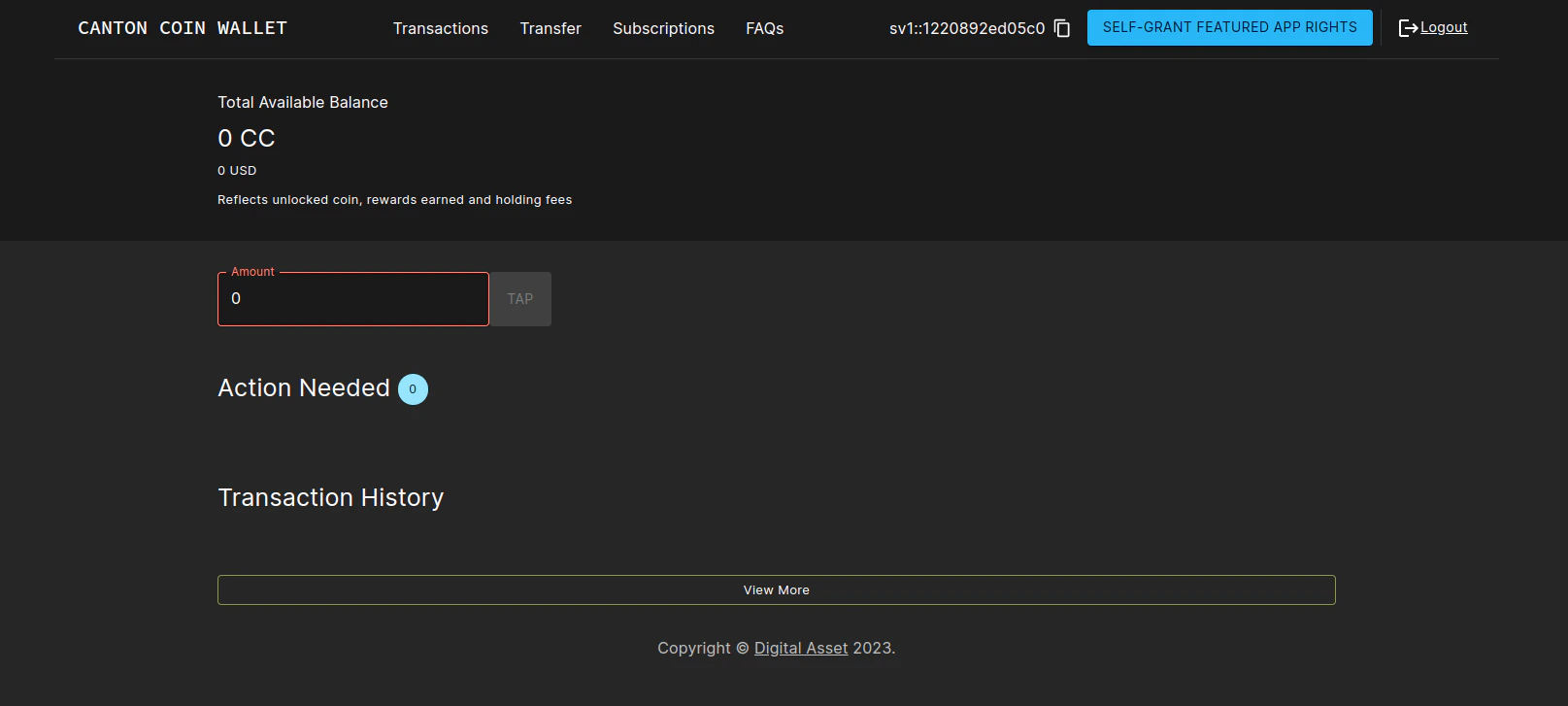
Logging into the wallet UI
After you deploy your ingress, open your browser at https://wallet.validator.YOUR_HOSTNAME and login using the credentials for the user that you configured asvalidatorWalletUser earlier. Once logged in one should see the transactions page.
Configuring automatic traffic purchases
By default your node will be configured to automatically purchase traffic on a pay-as-you-go basis (see automatically purchase traffic). To disable or tune to your needs, edit the following section in the validator-values.yaml file:# Configuring a validator's traffic top-up loop;
# see documentation for more detailed information.
topup:
# set to false in order to disable automatic traffic top-ups
enabled: true
# target throughput in bytes / second of sequenced traffic; targetThroughput=0 <=> enabled=false
targetThroughput: 20000
# minTopupInterval - minimum time interval that must elapse before the next top-up
minTopupInterval: "1m"
On each successful top-up, the validator app purchases a top-up amount of roughly targetThroughput * minTopupInterval bytes of traffic (specific amount can vary due to rounding-up). The minTopupInterval allows validator operators to control the upper-bound frequency at which automated top-ups happen. If the top-up amount is below the synchronizer-wide minTopupAmount (see traffic parameters), minTopupInterval is automatically stretched so that at least minTopupAmount bytes of traffic are purchased while respecting the configured targetThroughput.
The next top-up gets triggered when all of the following conditions are met:
- The available extra traffic balance drops below the configured top-up amount (i.e., below
targetThroughput * minTopupInterval). - At least
minTopupIntervalhas elapsed since the last top-up. - The validator has sufficient CC in its wallet to buy the top-up amount worth on traffic (except on DevNet, where the validator app will automatically tap enough coin to purchase traffic).
Validators receive a small amount of free traffic from the Super Validators, which suffices for submitting the top-up transaction. However, if many other transactions are submitted, you may run into a situation where you have exhausted also the free traffic, thus the validator cannot submit the top-up transaction. The free traffic grant accumulates gradually and continuously. When no transactions are submitted, it takes about twenty minutes for free traffic to accumulate to the maximum possible. If you’ve consumed your traffic balance by submitting too many transactions without purchasing traffic, pause your Validator node (validator app and participant) for twenty minutes to allow your free traffic balance to accumulate.
Configuring sweeps and auto-accepts of transfer offers
You can optionally configure the validator to automatically create transfer offers to other parties on the network whenever the balance of certain parties that it hosts exceeds a certain threshold.
Whenever the balance of <senderPartyID> exceeds maxBalanceUSD, the validator will automatically create a transfer offer to <receiverPartyId>, for an amount that leaves minBalanceUSD in the sender’s wallet. Note that you will need to know the party IDs of both the sender and receiver, which can be copied from the wallet UIs of the respective users (in the top right corner). This therefore needs to be applied to the Helm chart in a second step after the initial deployment, once the party IDs are known.
Whenever the validator receives a transfer offer from <senderPartyID> to <receiverPartyId>, it will automatically accept it. Similarly to sweeps, party IDs must be known in order to apply this configuration.
validator-values.yaml file:
# If you want funds sweeped out of parties in this validator, uncomment and fill in the following:
#walletSweep:
# "<senderPartyId>":
# maxBalanceUSD: <maxBalanceUSD>
# minBalanceUSD: <minBalanceUSD>
# receiver: "<receiverPartyId>"
# useTransferPreapproval: false # sweep by transferring directly through the transfer preapproval of the receiver,
# if set to false sweeping creates transfer offers that need to be accepted on the receiver side.
# Note that this refers to the preapprovals described in https://docs.dev.sync.global/background/preapprovals.html
# and not to auto accepting transfers. Auto accept transfers does not setup preapproval contracts that allow
# for a direct transfer but just automates the acceptance of the transfer offer so in that case
# useTransferPreapproval should be set to false.
validator-values.yaml file:
# To configure the validator to auto-accept transfer offers from specific parties, uncomment and fill in the following:
#autoAcceptTransfers:
# "<receiverPartyId>":
# fromParties:
# - "<senderPartyId>"
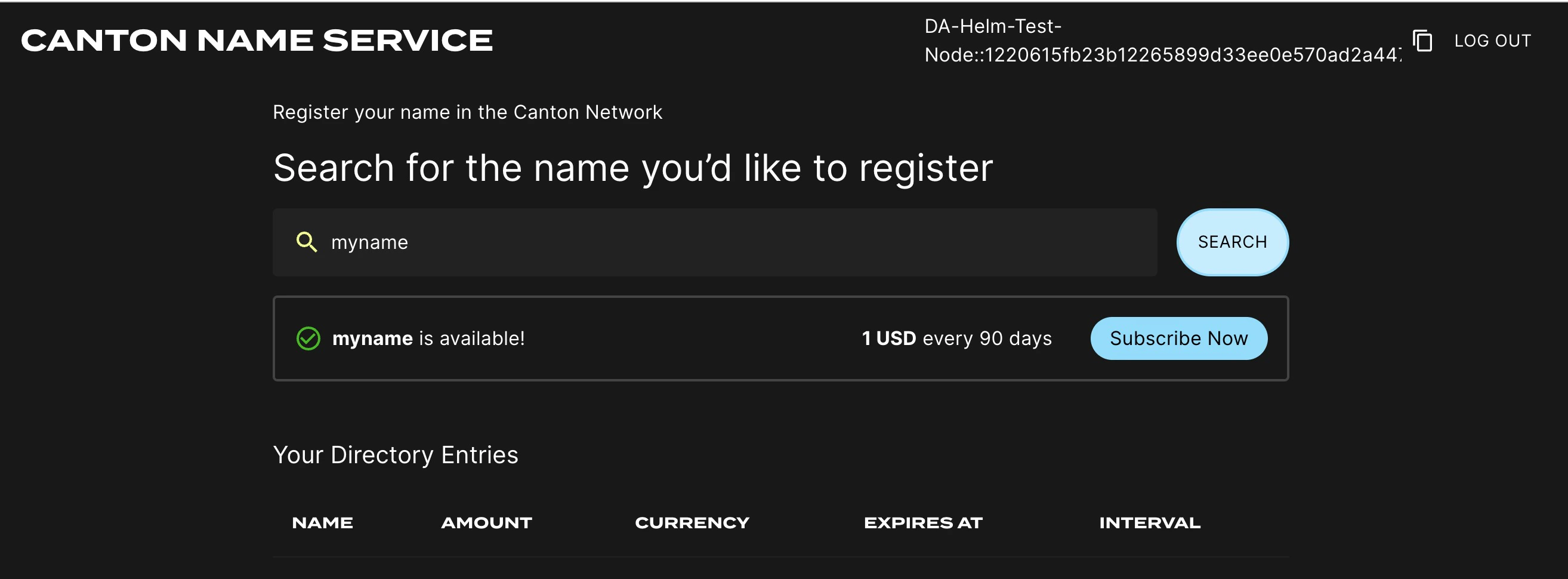
Logging into the CNS UI
You can open your browser at https://cns.validator.YOUR_HOSTNAME and login using the credentials for the user that you configured asvalidatorWalletUser earlier. You will be able to register a name on the Canton Name Service.
Wallet Gateway and Splice Portfolio
Your validator can also serve the Wallet Gateway and the Splice Portfolio to its users, next to the wallet UI and the CNS UI. The Wallet Gateway implements a CIP-0103 server allowing connections to CIP-0103 compliant dApps. Users log in to it with the same identity provider as the wallet UI and can manage their parties and configure external signing providers. The Splice Portfolio is a dApp which connects to a wallet via CIP-0103 for viewing holdings, transferring assets, enabling pre-approvals etc. The Wallet Gateway can also be used to connect to parties hosted on a local validator. Parties created in the Wallet Gateway are hosted on your validator’s participant, and the Wallet Gateway signs transactions with the participant by default; it can also use an external custody provider, see Signing providers. The Splice Portfolio calls your validator’s API and uses a Scan instance as its token registry.Deploying them
Both are deployed with Helm charts from the GitHub Container Registry, versioned independently of Splice. Use the latest releases, listed in the Wallet Gateway release notes and in the Splice Portfolio releases on GitHub; the chart versions match the release version numbers. Before installing, create an OAuth app for the Wallet Gateway UI in your OIDC provider, like the one for the wallet UI, withhttps://walletgateway.validator.YOUR_HOSTNAME/callback as the callback URL. Its client id is referred to as WALLET_GATEWAY_UI_CLIENT_ID below.
Wallet Gateway. The chart takes the Wallet Gateway configuration under the config key of its values. The parts that connect it to your validator are the identity provider, which is your validator’s OIDC provider, and a network that points at the JSON Ledger API of your participant, authenticates users with the Ledger API audience, and uses the validator app’s client credentials for administrative operations such as allocating parties:
# wallet-gateway-values.yaml
config:
kernel:
id: YOUR_VALIDATOR_NAME
clientType: remote
publicUrl: https://walletgateway.validator.YOUR_HOSTNAME
server:
port: 3030
allowedOrigins:
- https://portfolio.validator.YOUR_HOSTNAME
bootstrap:
idps:
- id: idp-oidc
type: oauth
issuer: OIDC_AUTHORITY_URL/
configUrl: OIDC_AUTHORITY_URL/.well-known/openid-configuration
networks:
- id: canton:YOUR_VALIDATOR_NAME
name: YOUR_VALIDATOR_NAME
identityProviderId: idp-oidc
ledgerApi:
baseUrl: http://participant:7575
auth:
method: authorization_code
audience: OIDC_AUTHORITY_LEDGER_API_AUDIENCE
scope: openid offline_access
clientId: WALLET_GATEWAY_UI_CLIENT_ID
adminAuth:
method: client_credentials
audience: OIDC_AUTHORITY_LEDGER_API_AUDIENCE
clientId: VALIDATOR_CLIENT_ID
clientSecretEnv: WALLET_GATEWAY_ADMIN_CLIENT_SECRET
helm install wallet-gateway oci://ghcr.io/digital-asset/wallet-gateway/helm/wallet-gateway --version WALLET_GATEWAY_VERSION -n YOUR_NAMESPACE -f wallet-gateway-values.yaml
OIDC_AUTHORITY_LEDGER_API_AUDIENCE as well. ledgerApi.baseUrl assumes the chart is installed in your validator’s namespace. The validator app’s client secret is passed through the environment variable named in clientSecretEnv, which you populate from a Kubernetes secret as described in Deploy the Wallet Gateway. That page also covers the database (store) and signing (signing) settings, which do not depend on your validator, and the Configuration reference lists all options.
Splice Portfolio. The chart takes the portfolio’s configuration under config too. Point it at your validator API and at a Scan instance, which serves as its token registry:
# portfolio-values.yaml
config:
amulet:
validatorUrl: https://wallet.validator.YOUR_HOSTNAME/api/validator
registry: SCAN_URL
token:
validatorUrl: https://wallet.validator.YOUR_HOSTNAME/api/validator
registries:
- url: SCAN_URL
name: Amulet registry
helm install splice-portfolio oci://ghcr.io/digital-asset/splice-portfolio/helm/splice-portfolio --version PORTFOLIO_VERSION -n YOUR_NAMESPACE -f portfolio-values.yaml
https://walletgateway.validator.YOUR_HOSTNAME and the portfolio’s port 80 as https://portfolio.validator.YOUR_HOSTNAME through your ingress, like the other UIs. The portfolio’s origin must be listed in the Wallet Gateway’s allowedOrigins, as in the values above.
Using them
- Open the Wallet Gateway, select your validator’s network and log in. Create your parties there, as described in Party Management. If you also want to use the same user in the wallet UI, or the DevNet faucet in the Splice Portfolio, first log in to the wallet UI with that user, which onboards it to the validator and allocates its wallet party; the Wallet Gateway then shows that party as the user’s primary party.
- Open the Splice Portfolio, click Connect Wallet and enter your Wallet Gateway’s dApp URL,
https://walletgateway.validator.YOUR_HOSTNAME/api/v0/dapp, as a custom wallet. See First-Time Setup. - On DevNet, tap the faucet from the portfolio’s Settings page to get test Canton Coin. Transactions started from the portfolio are approved in a Wallet Gateway popup.
Participant Pruning
By default, participants preserve all history. However, this leads to gradually growing databases and can slow down certain queries, in particular, queries for the active contract set on the ledger API. To mitigate that, it is possible to enable participant pruning which will remove all history beyond a specified retention point and only preserve the active contract set. Note that this only affects the participant stores. The CN apps (Validator, SV and Scan) are unaffected by enabling this, so e.g., the history in your wallet will never be pruned. Below you can see an example of the pruning config that you need to add tovalidator-values.yaml to retain only the history for the last 48h.
Note that if your node is down for longer than the pruning window (48 hours in the example above), your node will most probably get corrupted, as the apps race catching up with the participant’s attempts to keep pruning. It is therefore advisable to set the pruning window to a value that you are comfortable with in terms of guaranteeing uptime of your node. Setting it to 30 days is in general a reasonable choice, as the sequencers currently are also pruned after 30 days, so you will not be able to catch up with the network after a longer downtime anyway (see Disaster Recovery for disaster recovery guidelines).
Refer to the pruning guide for more details on participant pruning.
# To configure participant pruning uncomment the following section.
# Refer to the documentation for more details.
# participantPruningSchedule:
# cron: 0 /10 * * * ? # Run every 10min
# maxDuration: 5m # Run for a max of 5min per iteration
# retention: 48h # Retain history that is newer than 48h.
Configuring init containers
If you need to configure init containers on the participant or validator deployments, you can use the following helm values forsplice-participant or splice-validator:
# if you want to disable the default postgres init container:
persistence:
enablePgInitContainer: false
# if you want additional init containers:
extraInitContainers:
- name: my-extra-container
image: busybox
command: [ "sh", "-c", "echo 'example extra container'" ]
Working around volume ownership issues
The containers in thesplice-validator chart run as non-root users (specifically, user:group 1001:1001) for security reasons. The pod mounts volumes for use by the containers, and these volumes need to be owned by the user that the containers run as. The Helm chart uses an fsGroup security context to ensure that the mounted volumes are owned by the correct user. In certain environments, however, this does not work as expected and the mounted volumes are owned by root. If you encounter this issue, you can work around it by creating init containers that change the ownership of the mounted volumes to the correct user.
For example, for the /domain-upgrade-dump volume (required for synchronizer upgrades), you can add the following to your validator-values.yaml file:
extraInitContainers:
- name: chown-domain-upgrade-dump
image: busybox:1.37.0
command: ["sh", "-c", "chown -R 1001:1001 /domain-upgrade-dump"]
volumeMounts:
- name: domain-upgrade-dump-volume
mountPath: /domain-upgrade-dump
/participant-bootstrapping-dump (required when recovering from identities backup).
Footnotes
- The URL must be reachable from the Canton participant and validator app running in your cluster, as well as from all web browsers that should be able to interact with the wallet and CNS UIs. ↩